
Organize receipts from online purchases
Upload one receipt screenshot to preview its details. Then see how to check the payment and organize your online purchases.
Checking for your preview…
Turn order receipts and screenshots into expense records
Use the payment receipt or a readable screenshot
Open the merchant’s receipt and show the merchant, purchase date, currency and final total in one image. If you have several emails for the same order, choose the one that documents the payment and keep any other relevant correspondence separately.
- Keep the identifying details and total in one frame
- Use the accepted image format for the screenshot
Your receipts
Old Navy
Apr 13, 2019 · Clothing
USD 72.63
ConfirmedDenny's
Apr 9, 2019 · Meals
USD 30.37
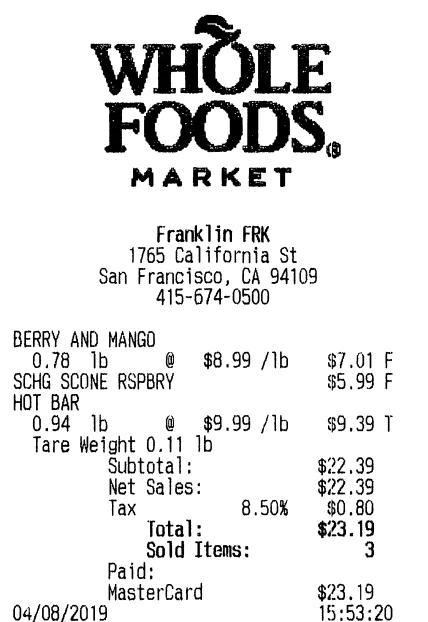
ConfirmedWhole Foods Market
Apr 8, 2019 · Groceries
USD 23.19
Confirmed
Check the final amount and avoid duplicate records
Compare the total with the payment receipt after shipping, discounts and taxes. A shipping notice or repeat confirmation can belong to the same order. Search for the merchant or check the purchase date before you create another record.
- Use the final paid amount after discounts
- Check existing records for a matching purchase
Make subscriptions and repeat orders easier to find
Add a short note, such as the billing month or the project that used the subscription. When a purchase is later refunded, record the context and keep the refund confirmation with your supporting information.
- Use a consistent note for recurring charges
- Keep refunds easy to trace during review
Details to review
- Merchant
- Whole Foods Market
- Date
- Apr 8, 2019
- Subtotal
- USD 22.39
- Tax
- USD 0.80
- Total
- USD 23.19
Example: a monthly software renewal
You receive a renewal notice, a payment receipt and a reminder from the same merchant on one day.
- Choose the message that documents the payment and capture the full amount and date.
- Add a note with the subscription name and billing month.
- Search the merchant before confirming so the reminder does not become a second expense.
Features
The essentials, together.
A focused place to collect, check and organize your receipt records.
Useful fields, not a wall of text
Merchant, date, amount, currency and tax in separate fields you can review.
You make the final call
See review warnings, correct a field and explicitly confirm the record.
Keep the receipt close
Open the receipt image alongside its saved details in your account.
Categories you can change
Start with a suggestion, then choose the category that fits your expense.
A list you can come back to
Search merchants and narrow records by date, category or review status.
Account-owned records
Saved receipts and their images are accessed through your account.
Questions about online purchase receipts
Related receipt tools and guides
Keep the entire receipt in focus, use even light, and check the total before uploading. A short photo checklist for readable receipt images.
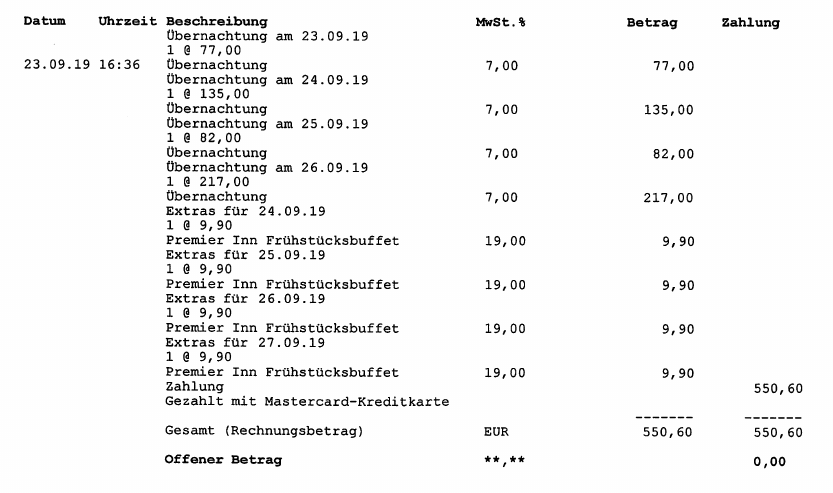
Germany · Hotel invoice
EUR 550.60 billed · EUR 0.00 due
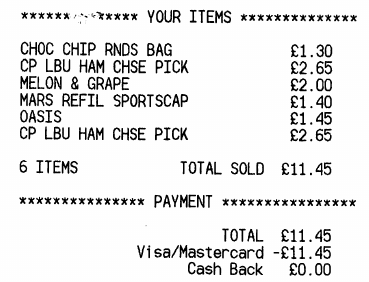
United Kingdom · Retail receipt
GBP 11.45 paid
Compare a German hotel invoice and a UK retail receipt. Learn which totals, dates and payment details to check before saving.
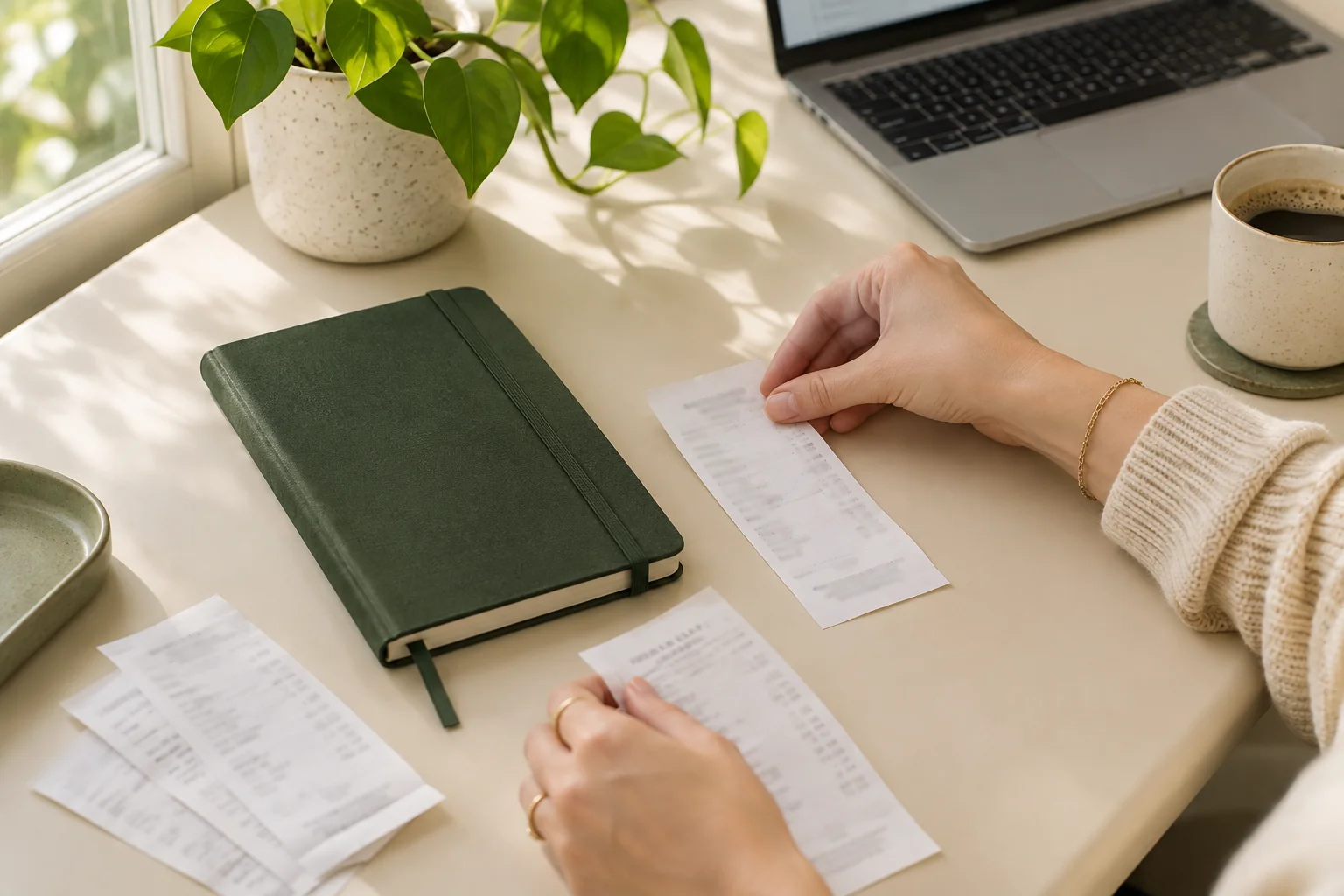
A practical receipt review checklist: check the seller, date, currency, total and tax against the image before confirming an expense record.