
Scan and review client receipts for bookkeeping
Try scanning one receipt here. See which details you can check before including a client’s receipt in a CSV export.
Checking for your preview…
From incoming receipt photos to reviewed records
Check the original before confirming
Compare the extracted merchant, purchase date, currency and total with the image. If a receipt shows both a suggested tip and a final charge, check the amount actually paid. Ask the client about unclear purchases and record the context in a note.
- Compare the amount with the original
- Keep the client’s clarification with the record
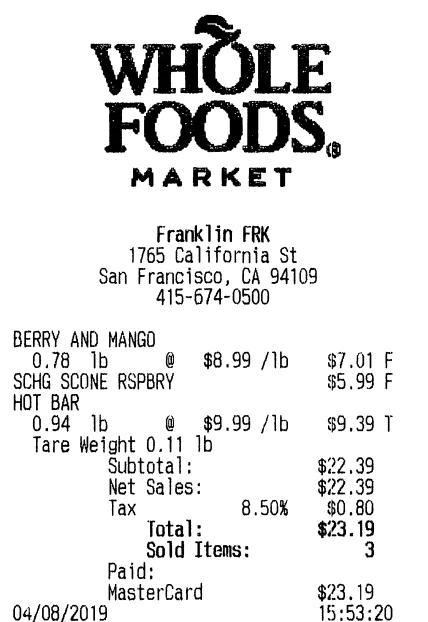
Details to review
- Merchant
- Whole Foods Market
- Date
- Apr 8, 2019
- Subtotal
- USD 22.39
- Tax
- USD 0.80
- Total
- USD 23.19
Export the period you’re working on
Filter confirmed records to the period you need and download the matching rows as CSV. Open the file in your spreadsheet and check the dates, currencies and totals before moving the data into your bookkeeping workflow.
- Check the date range before exporting
- Keep the supporting images with your records

Work through exceptions before handing off the CSV
Review drafts with missing dates, unreadable figures or unclear business purposes before you close the period. Ask the client for a better image or explanation, then confirm and export the records you have checked.
- Check for duplicates and missing details
- Keep unresolved purchases as drafts
receipts-2019-04.csv
| Merchant | Category | Amount |
|---|---|---|
| Old Navy | Clothing | USD 72.63 |
| Denny's | Meals | USD 30.37 |
| Whole Foods Market | Groceries | USD 23.19 |
Example: a client sends a bill and a separate card slip
Both images refer to the same meal. The itemized bill identifies the purchase and the card slip confirms the final amount.
- Compare the merchant, date and payment reference before treating the images as two expenses.
- Check the amount actually paid and note the expense purpose if the client supplied it.
- Confirm one record for the purchase. Keep the supporting slips with your bookkeeping records.
Features
The essentials, together.
A focused place to collect, check and organize your receipt records.
Useful fields, not a wall of text
Merchant, date, amount, currency and tax in separate fields you can review.
You make the final call
See review warnings, correct a field and explicitly confirm the record.
Keep the receipt close
Open the receipt image alongside its saved details in your account.
Categories you can change
Start with a suggestion, then choose the category that fits your expense.
A list you can come back to
Search merchants and narrow records by date, category or review status.
Account-owned records
Saved receipts and their images are accessed through your account.
Receipt review questions for accountants
Related receipt tools and workflows
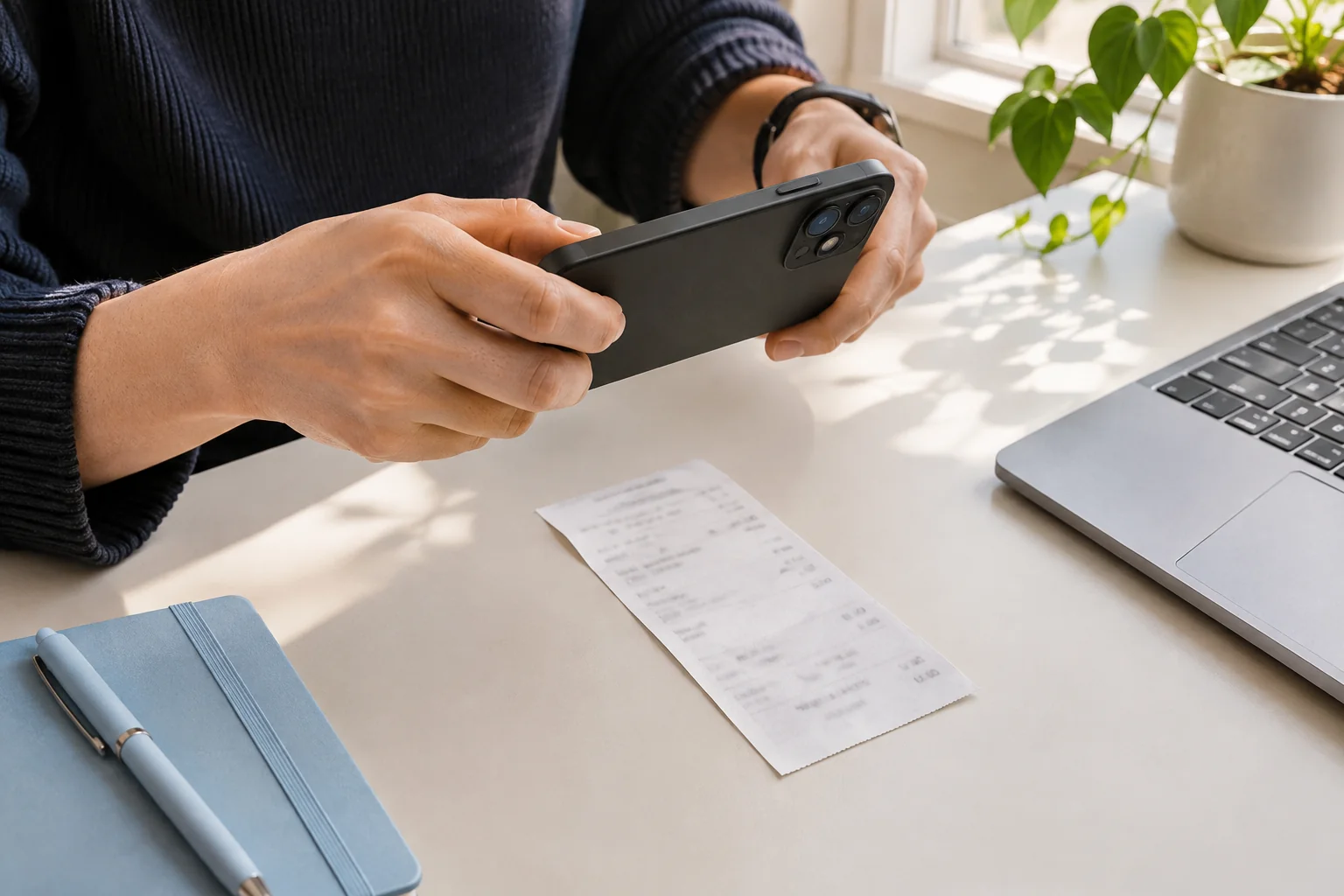
Keep the entire receipt in focus, use even light, and check the total before uploading. A short photo checklist for readable receipt images.
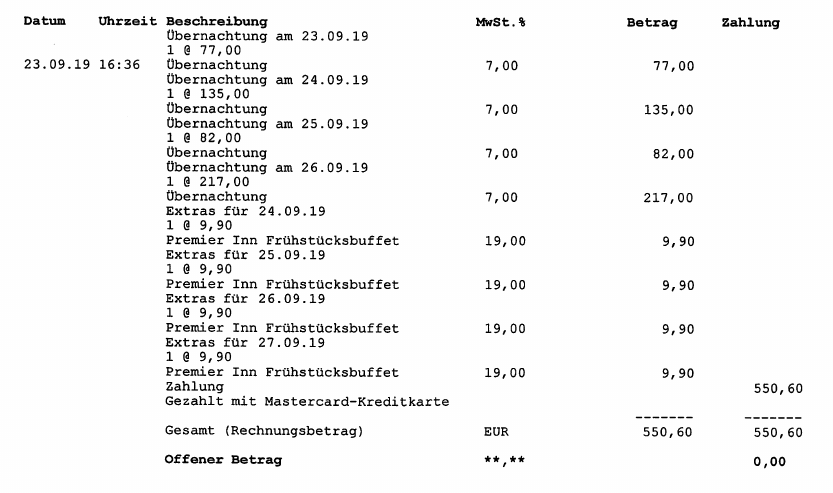
Germany · Hotel invoice
EUR 550.60 billed · EUR 0.00 due
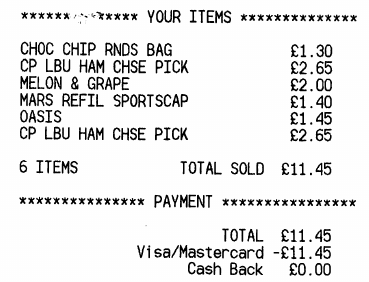
United Kingdom · Retail receipt
GBP 11.45 paid
Compare a German hotel invoice and a UK retail receipt. Learn which totals, dates and payment details to check before saving.
A practical receipt review checklist: check the seller, date, currency, total and tax against the image before confirming an expense record.