
What is an itemized receipt? See a real example
An itemized receipt lists each purchase separately. Scan one here to preview the main fields, then use the example below to check what they mean.
Checking for your preview…
How to read the lines and totals on a receipt
Find the details for each purchase
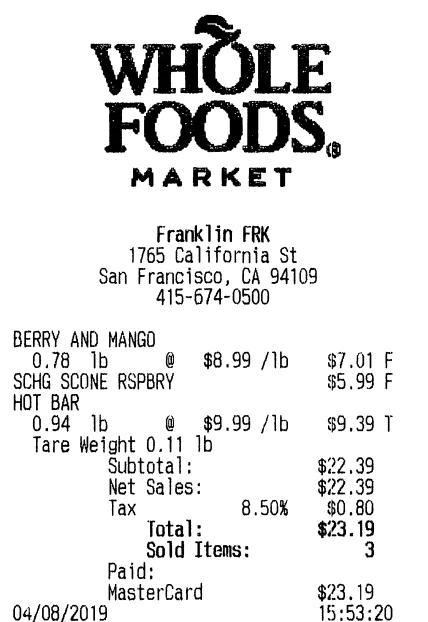
Look for a description, quantity or weight, and the price charged for that line. The Whole Foods example lists three items. A line priced by weight can show the rate and the amount paid, so read all the columns before you compare figures.
- Check the quantity or weight for each line
- Read the charged amount alongside the unit price
Details to review
- Merchant
- Whole Foods Market
- Date
- Apr 8, 2019
- Subtotal
- USD 22.39
- Tax
- USD 0.80
- Total
- USD 23.19
Read the subtotal, tax and amount paid together
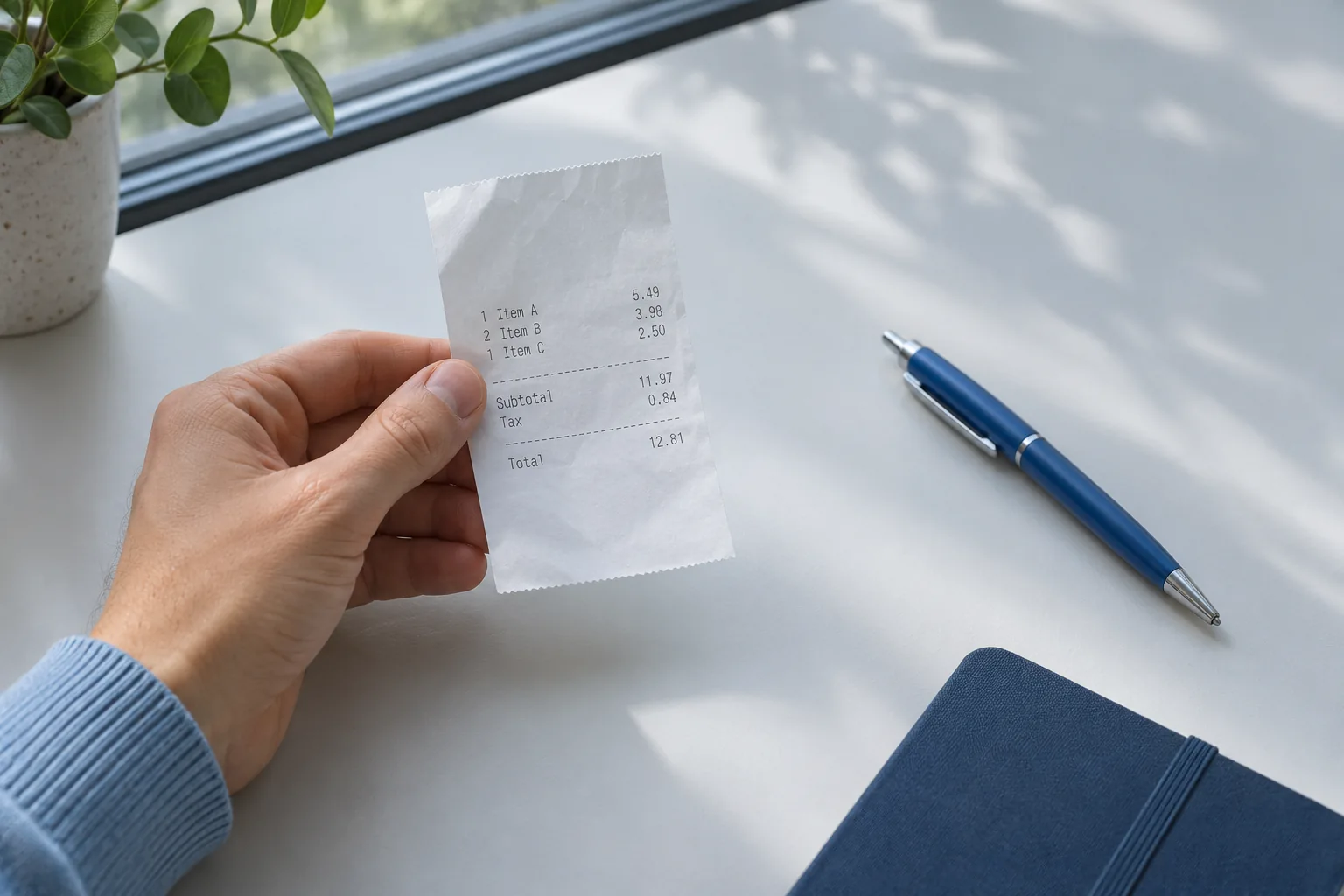
The subtotal usually adds the line amounts before tax or other charges. Compare it with tax, discounts or service charges and find the final paid total. The original image is the reference if the numbers in a preview look wrong.
- Check which charges were added after the subtotal
- Use the final paid amount for the record
Keep the itemized original with the expense record
A card slip can show that a payment happened. Keep the itemized receipt if someone needs to see what was bought. Tabbri previews main receipt fields for review, and the original image remains available with the saved record.
- Keep a clear photo of the item descriptions
- Confirm the key fields against the original
Your receipts
Old Navy
Apr 13, 2019 · Clothing
USD 72.63
ConfirmedDenny's
Apr 9, 2019 · Meals
USD 30.37
ConfirmedWhole Foods Market
Apr 8, 2019 · Groceries
USD 23.19
Confirmed
Example: follow the totals on the Whole Foods receipt
The sample alongside the review details shows what was bought and how the purchase total was formed.
- The three amounts shown for the goods are $7.01, $5.99 and $9.39. Together they make the $22.39 subtotal.
- The receipt lists $0.80 in tax.
- The final amount paid is $23.19. Check that the preview matches that amount before saving.
Features
The essentials, together.
A focused place to collect, check and organize your receipt records.
Useful fields, not a wall of text
Merchant, date, amount, currency and tax in separate fields you can review.
You make the final call
See review warnings, correct a field and explicitly confirm the record.
Keep the receipt close
Open the receipt image alongside its saved details in your account.
Categories you can change
Start with a suggestion, then choose the category that fits your expense.
A list you can come back to
Search merchants and narrow records by date, category or review status.
Account-owned records
Saved receipts and their images are accessed through your account.
Questions about itemized receipt guide
Related receipt tools and guides
Keep the entire receipt in focus, use even light, and check the total before uploading. A short photo checklist for readable receipt images.
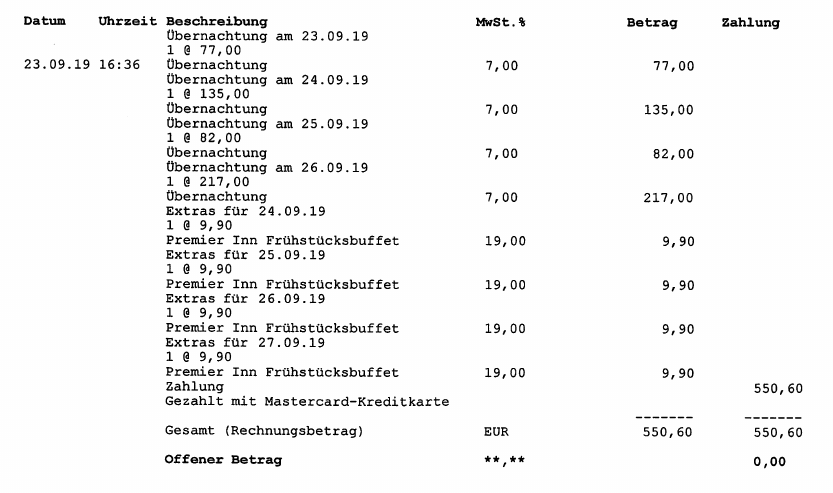
Germany · Hotel invoice
EUR 550.60 billed · EUR 0.00 due
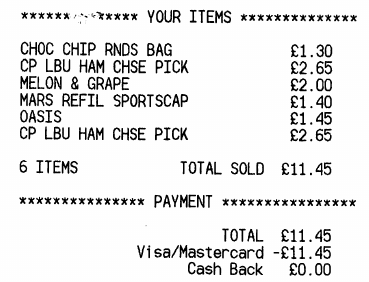
United Kingdom · Retail receipt
GBP 11.45 paid
Compare a German hotel invoice and a UK retail receipt. Learn which totals, dates and payment details to check before saving.
A practical receipt review checklist: check the seller, date, currency, total and tax against the image before confirming an expense record.